
Expanded Subscriptions and In-app Tracking with Google
We're expanding our analytics for your subscriptions and in-app purchases. We’re hard at work on a beta for this feature and appreciate your willingness to test it out. We’re still collecting data to ensure the reporting is perfect, so you won’t see any new reports yet. By getting set up ahead of time, you'll automatically import data as soon as the beta is live.
Want to be part of the beta? Contact us
Setting up Google Developer Notifications
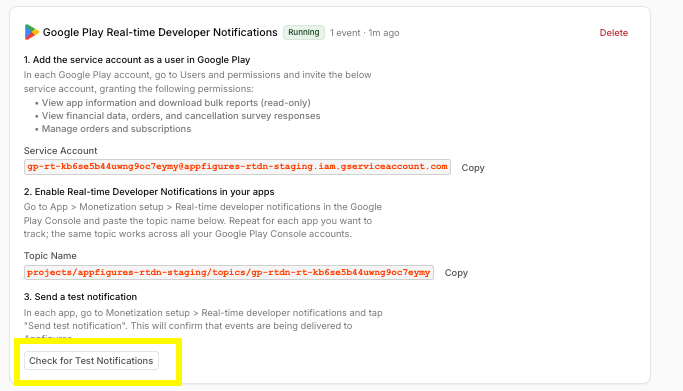
- First, go to your configuration page in Appfigures and click “Start Setup” under Google Play Real-time Developer Notifications. There’s a brief provisioning step, after which you’ll be given a Service Account Email and a Topic Name. These will need to be configured in each developer account you have access to. You can use them across as many apps and developer accounts as you wish.
- You’ll need to add the Service Account to your Google Play account as a subuser.
A. Go to Users and Permissions in the Google Play Developer Console and click Invite new users. Invite the Service Account email, with the following permissions:
- View app information and download bulk reports
- View financial data, orders, and cancellation survey responses
- Manage orders and subscriptions
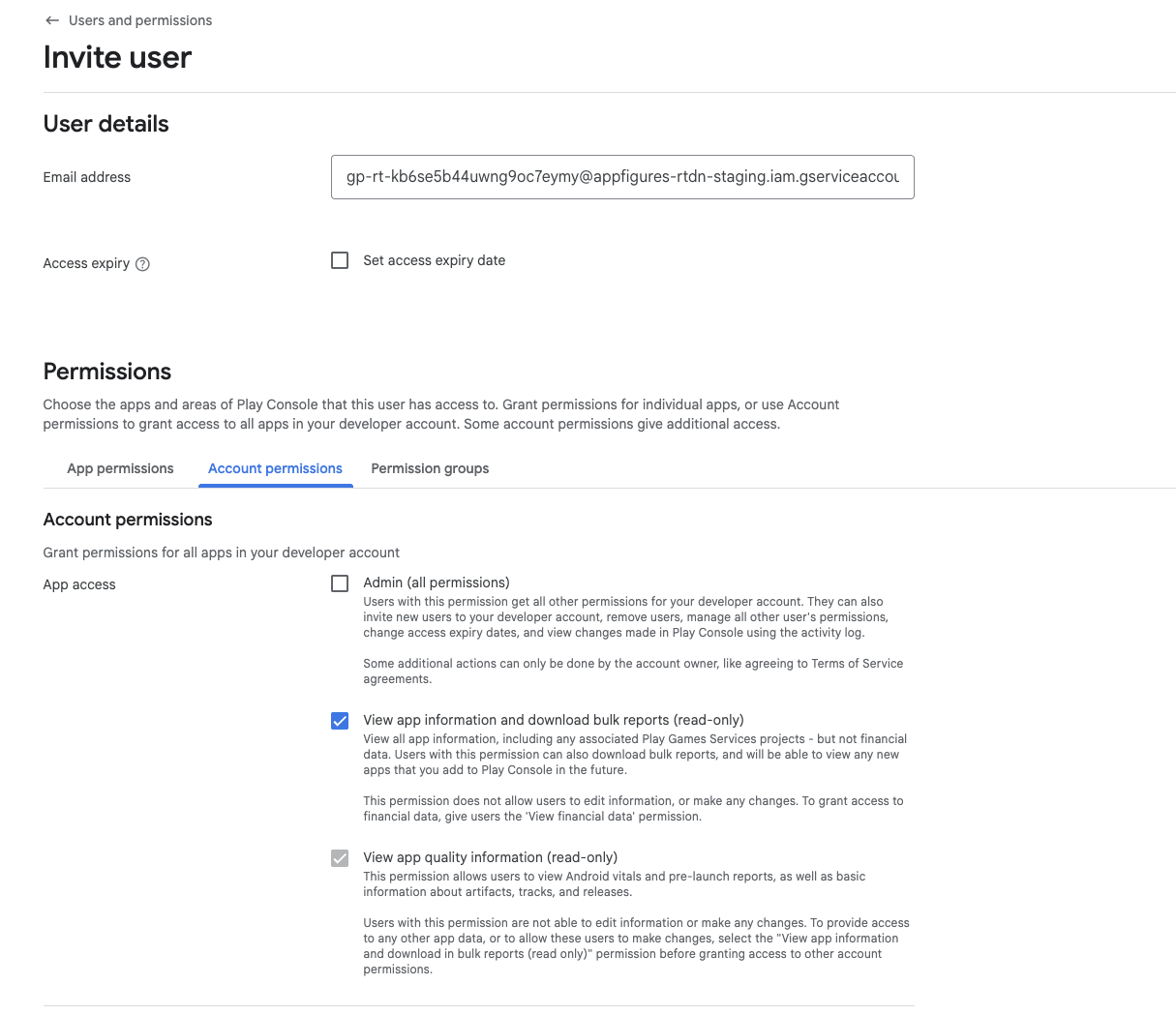
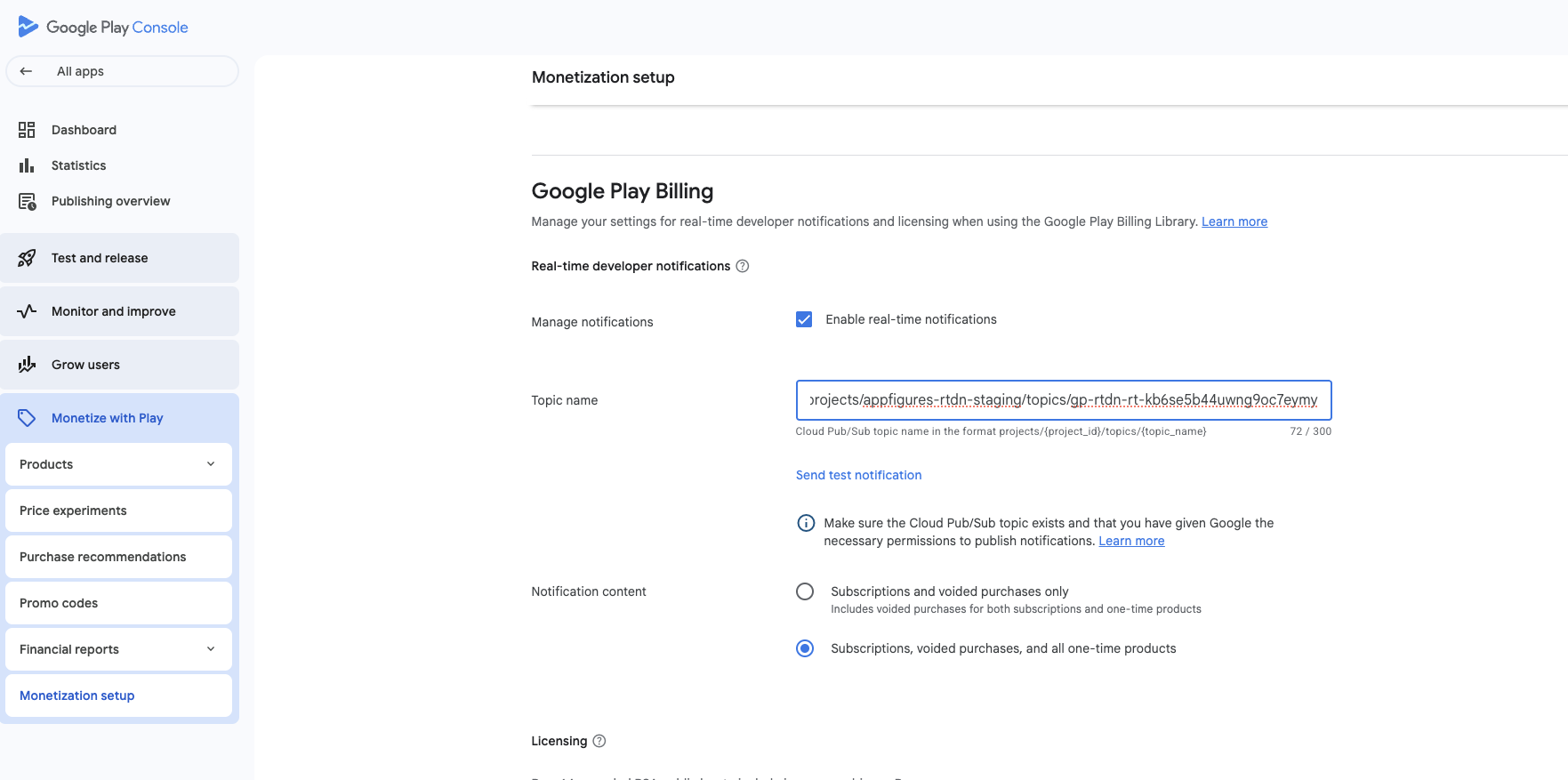
- Then you’ll need to set the for each app you’d like to receive data for. Go to App → Monetize With Play → Monetization setup and set the following under Google Play Billing:
- Manage notifications: Enable real-time notifications
- Topic name: the topic name we created for you
- Notification Content: Subscriptions, voided purchases, and all-one-time products
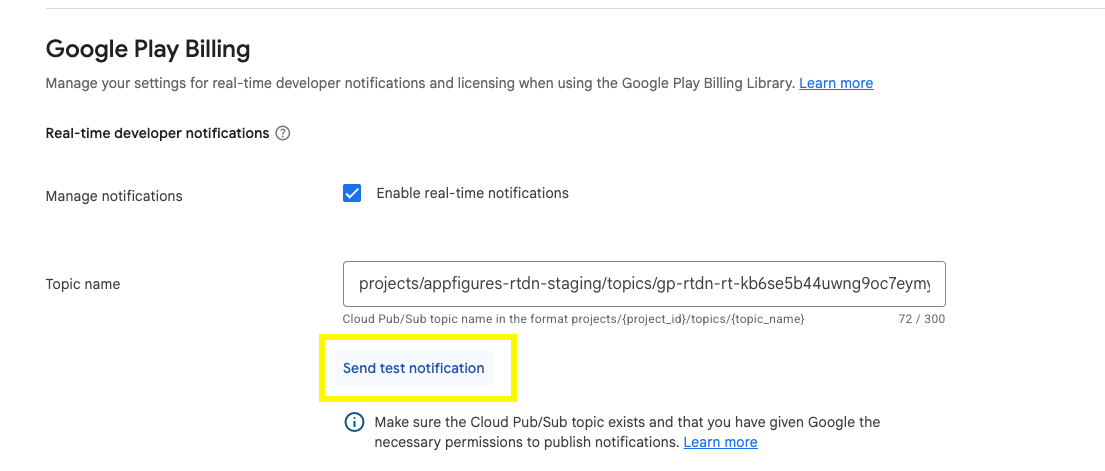
- You can send a test notification from the Google Play Developer Console on the Monetization setup screen for your app. It may take a few minutes for both the Service Account and Topic configuration to propagate on Google’s side.
| |
Updated on: 20/03/2026