
[Beta] Setting up Revenue Tracking for Apple Subscriptions and IAPs
We're expanding our analytics for your subscriptions and in-app purchases. We’re hard at work on a beta for this feature and appreciate your willingness to test it out. We’re still collecting data to ensure the reporting is perfect, so you won’t see any new reports yet. By getting set up ahead of time, you'll automatically import data as soon as the beta is live.
Want to be part of the beta? Contact us
You can start the integration process for Apple by following the directions below:
Setting Up App Store Connect Notifications
For Apple, we use two API keys from your App Store Connect account and Apple Server Notifications in order to get this data.
Setting up Apple App Store Server Notifications
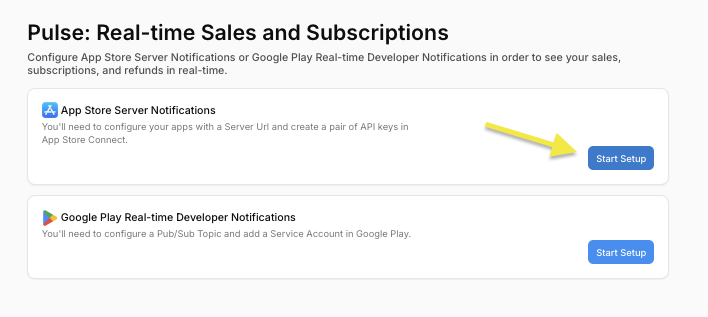
- First, go to your configuration page in Appfigures and click “Start Setup” under App Store Server Notifications
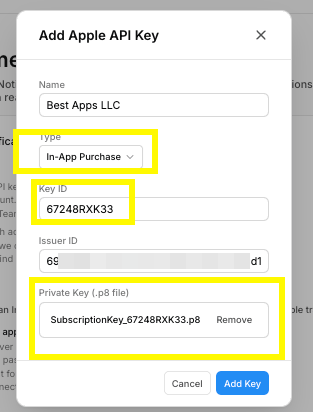
- You’ll need to add two API keys per App Store Connect account. Let’s start with the In-App Purchase key. You can create your keys by going to Users and Access → Integrations in App Store Connect.
A. Click In-App Purchase and create an In-App Purchase key for your account.
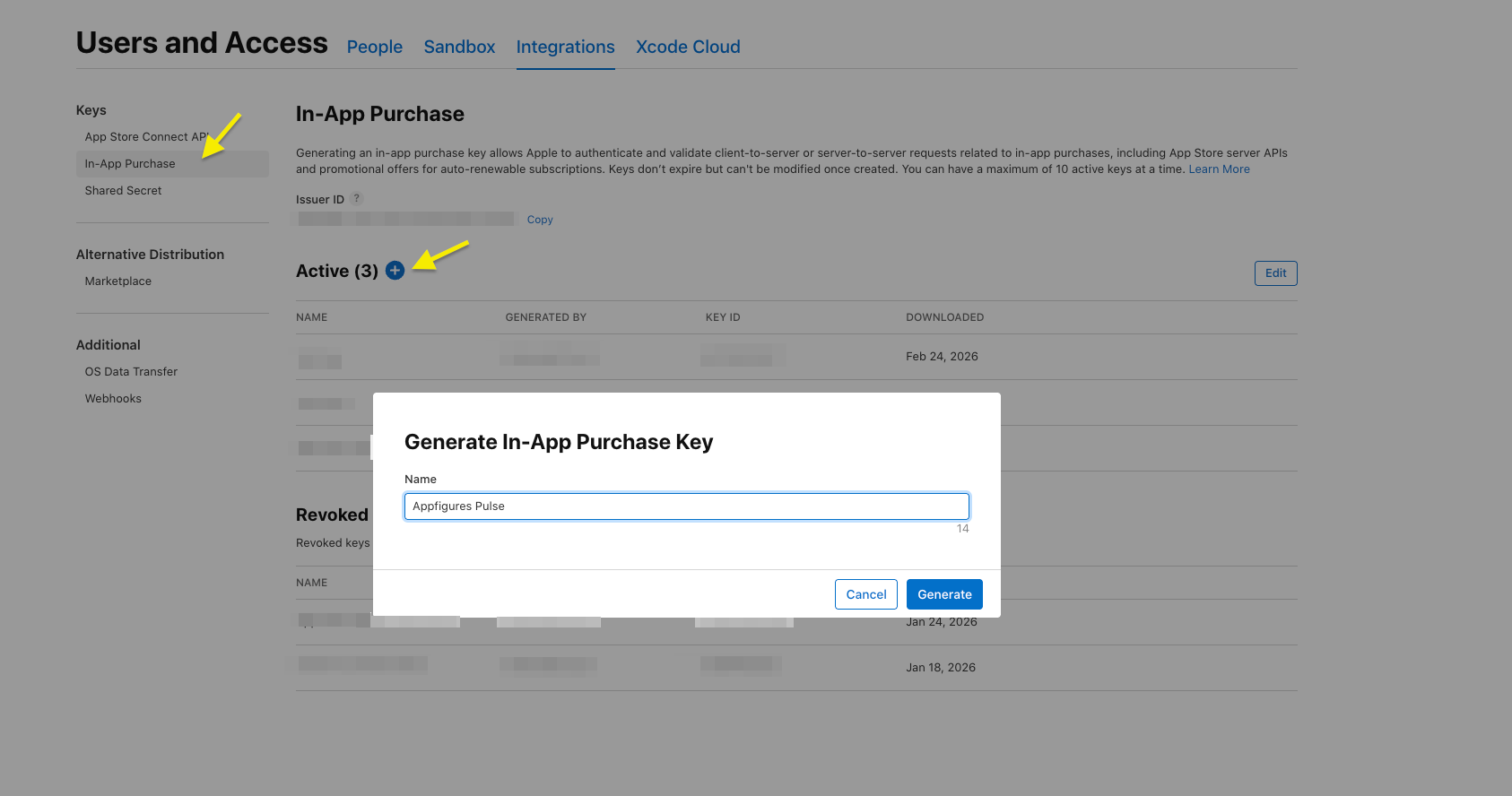
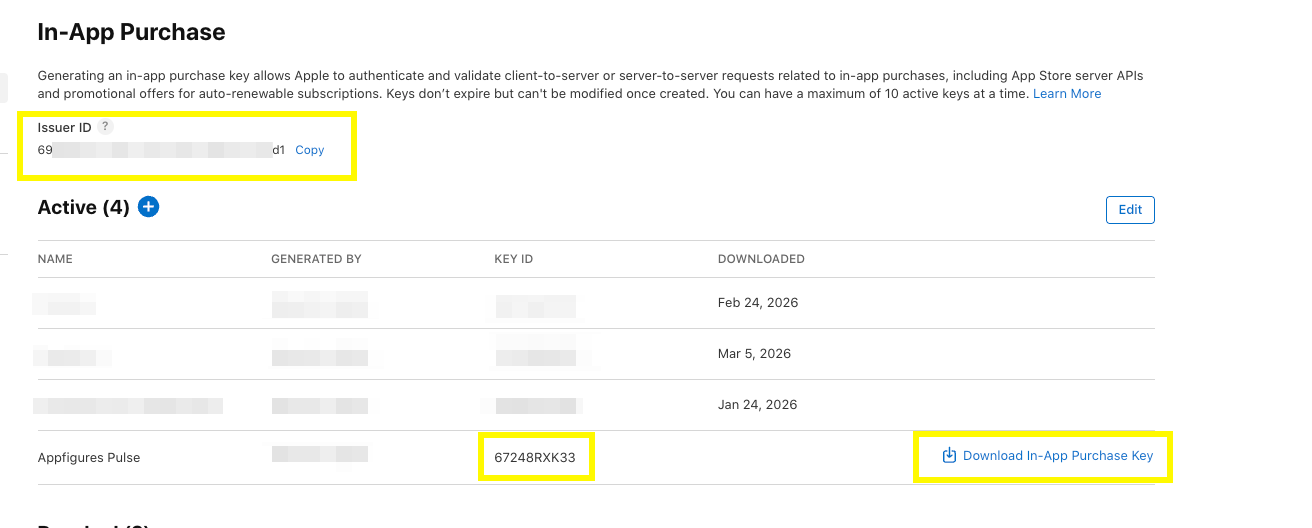
B. Then, download the key. Note that you can only do this once, so put it in a safe place.
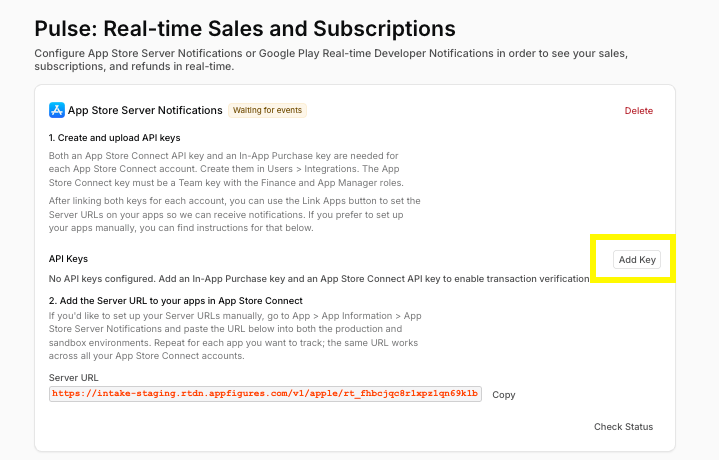
C. Finally, add it to Appfigures along with the Key ID and Issuer ID. We suggest naming your key after your App Store Connect account as each account you have access to will require a separate set of keys.
| | |
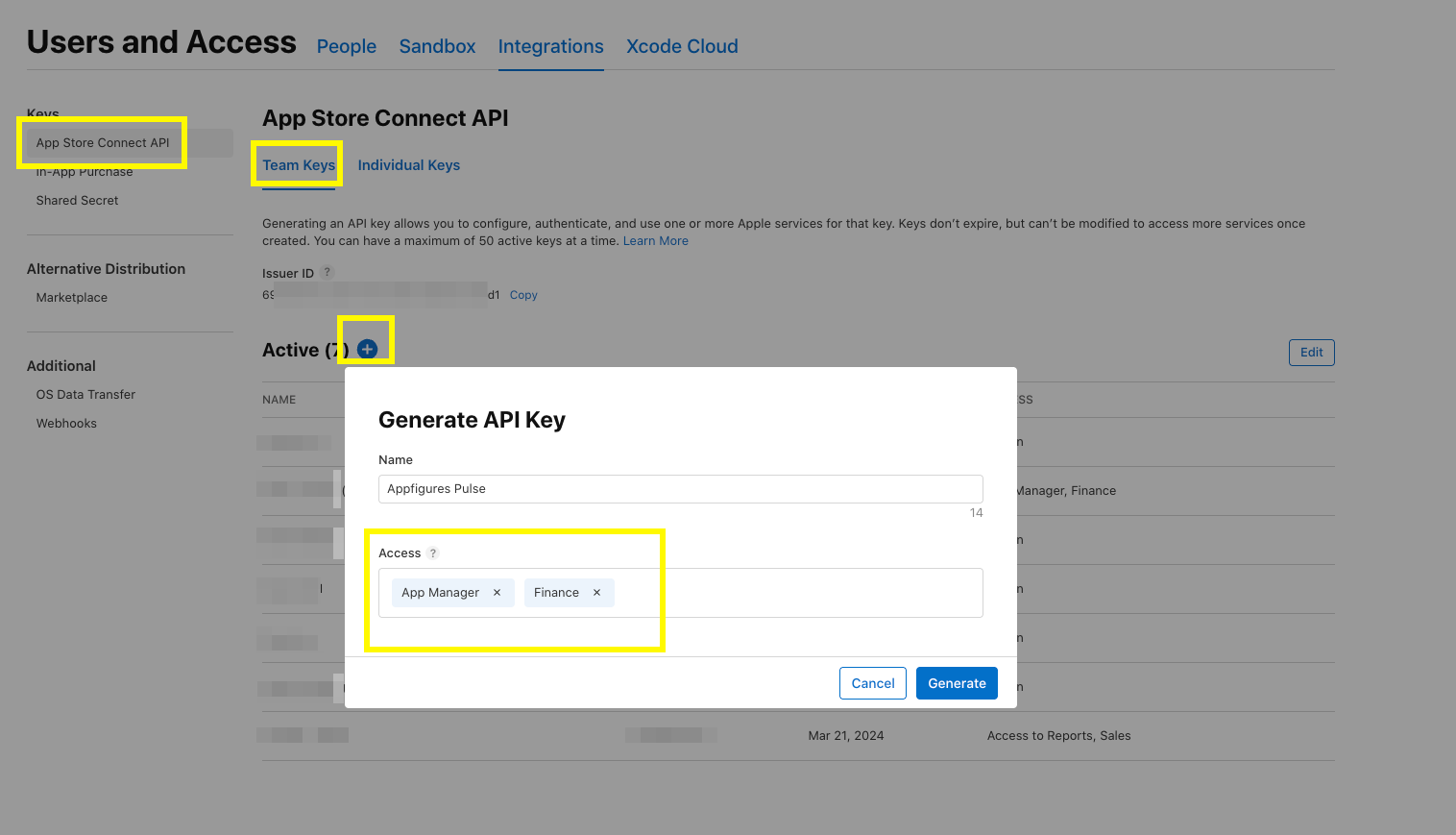
- Create the App Store Connect API key by going to Users and Access → Integrations in App Store Connect and clicking “App Store Connect API”.
A. Create a new key:
Key Scope: Team Key
Access: App Manager, Finance
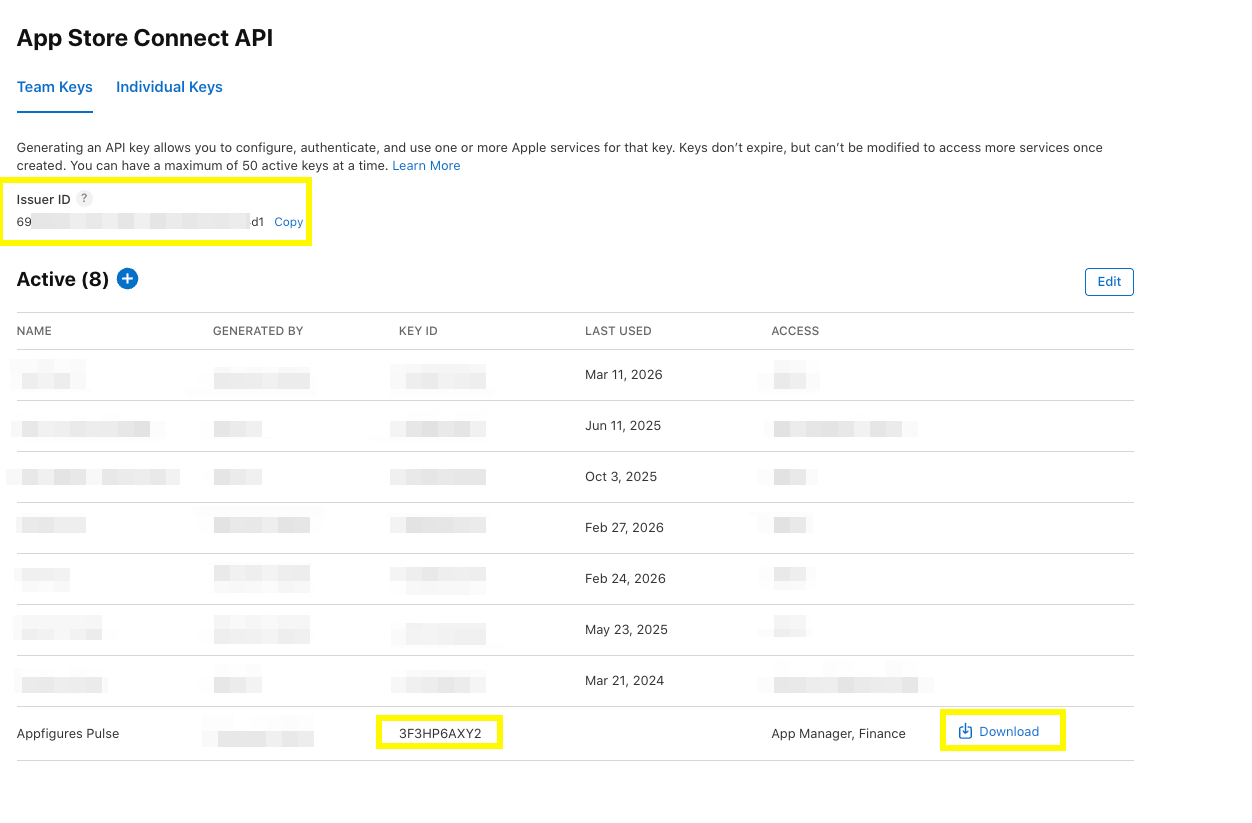
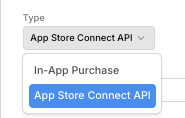
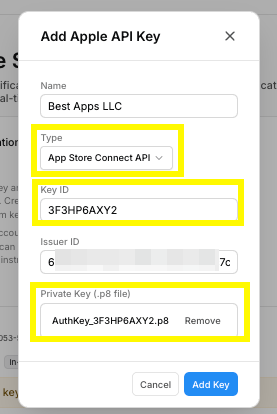
B. You’ll need to add it to Appfigures, making sure to select App Store Connect API as the Type.
| |
| |
- Each app you want to receive events for requires our Server Url to be added to it. Each app can only have a single Server Url for Production (and another for Sandbox). You can use this URL across all of your linked App Store Connect accounts and apps.
A. If you aren’t currently using App Store Server Notifications, we suggest clicking on “Link Apps” in Appfigures and then clicking Set Server URLs for the apps you’re interested in. This replaces any existing Server URLs, so if you are using another provider currently please see below.
We can automatically set the Server URLs on your apps. If there are any existing URLs in your app’s config they will be replaced.](https://af-kb.s3.us-east-1.amazonaws.com/738/appstoreservernotifications-10.png)
B. If you are currently using App Store Server Notifications or using another provider we suggest setting them manually by setting our Server URL into the appropriate place.
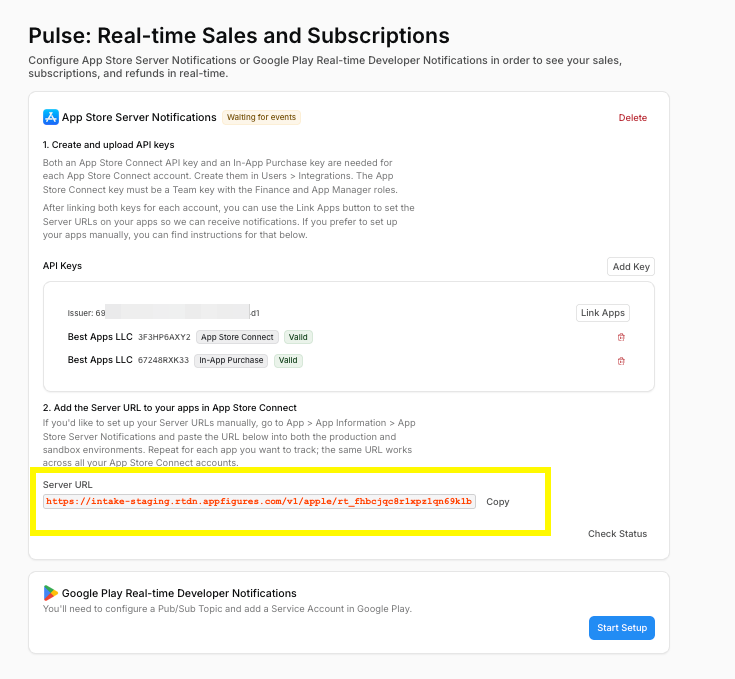
- If you’re not using another provider, you can go to App > App Information > App Store Server Notifications in App Store Connect and paste the Server URL into both the production and sandbox environments.
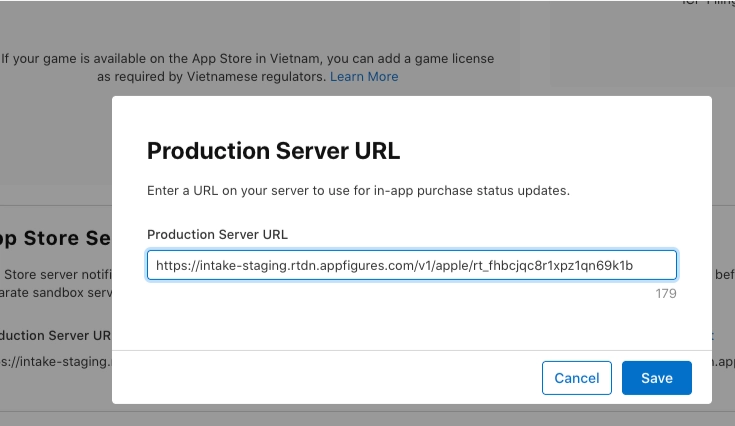Verify that the Server URLs for both the Production and Sandbox environments match what’s in Appfigures.](https://af-kb.s3.us-east-1.amazonaws.com/738/appstoreservice13.png)
- If you are using another provider, check their documentation for where to put our Server Notification URL in order to continue receiving events.
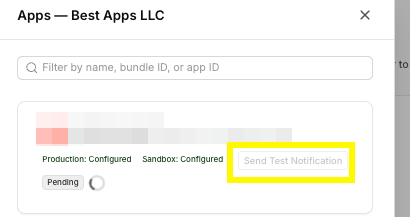
- After setting the Server URLs you’ll be able to send a test notification. It make take a few minutes for the changes to propagate on Apple’s side, so if your notifications are showing as Sent but not Received wait a few minutes and try again.
Updated on: 31/03/2026